Settings & Profiles
The settings view mirrors the TUI settings layout so muscle memory carries over. It is grouped into tabs you can edit per profile or globally. This page maps the tabs and covers the web-only pieces: the conversation font size, the profile picker, connected-device tracking, and step-up elevation. For running the server, see the Web Dashboard overview.
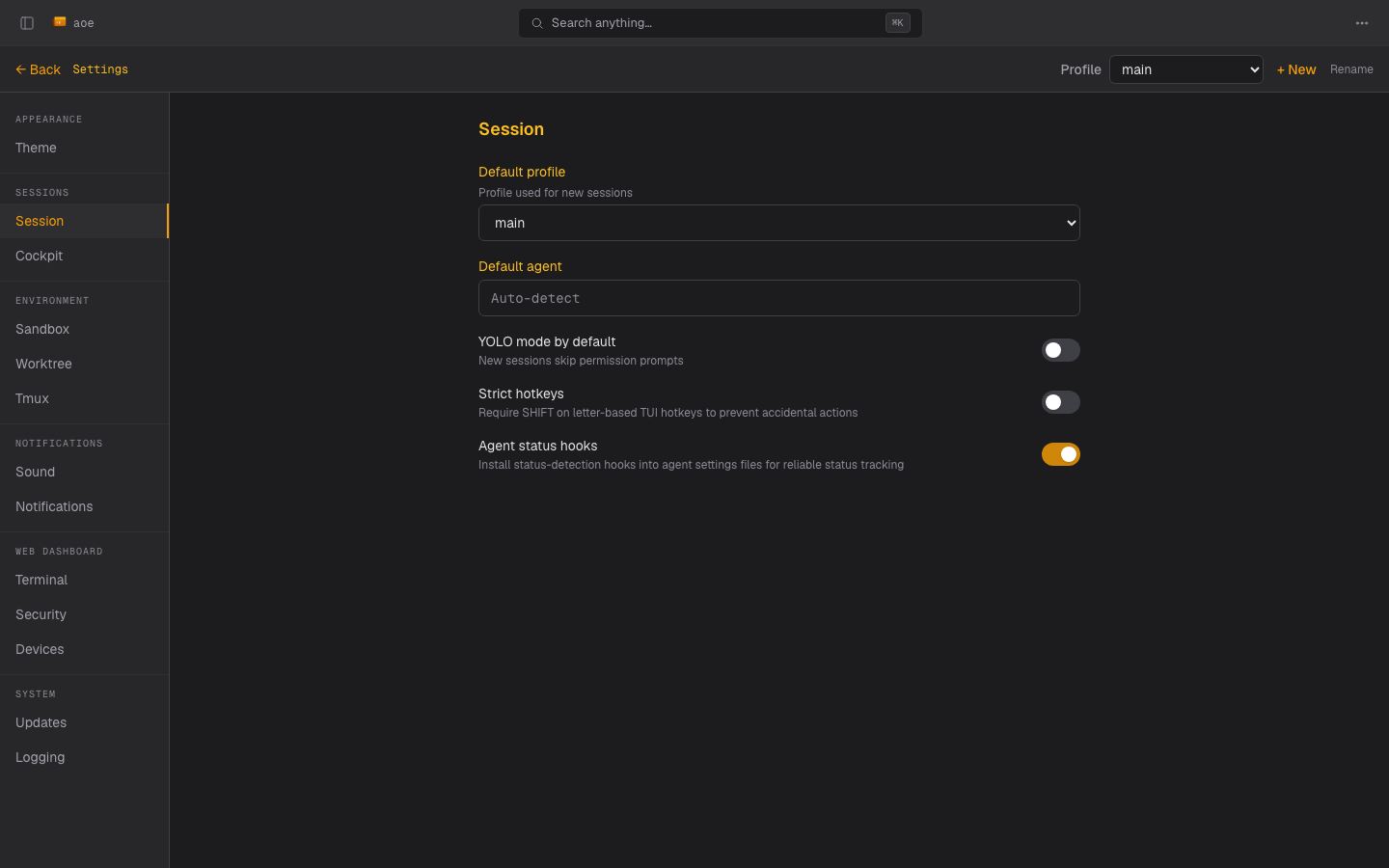
Tab groups
Settings are organized into the same groups as the TUI:
- Appearance: Theme.
- Sessions: Session defaults and Structured view (the replay and watchdog tuning knobs; see Structured View Internals).
- Environment: Sandbox, Worktree, and Tmux.
- Notifications: Sound and Notifications (web push; see Push notifications).
- Web Dashboard: Terminal, Security, and Connected Devices.
- System: Updates and Logging.
Every config field that exists in the TUI settings is editable here too: the
panel is generated from the same settings schema as the TUI, so a field
declared once appears on both surfaces and they never drift. The only host-side
knob the dashboard does not surface is the host environment list, which stays
TUI/config.toml-only.
Conversation font size
Sessions > Structured view > Conversation display sets the base font size of the structured-view conversation transcript, separately for mobile and desktop. Prose, headings, lists, tables, and fenced code all scale from that base, so shrinking it fits more of a transcript on a phone screen.
The mobile value applies when the device has a coarse primary pointer (touch) and the viewport is narrower than 768px, the same rule the rest of the dashboard uses to decide what counts as mobile. A touch laptop and a narrowed desktop window both keep the desktop value. The switch happens live, so resizing the window or rotating a phone reflows the transcript without a reload.
Each axis runs from 6px to 28px in 1px steps and defaults to 14px, the same range as the terminal font sizes under Web Dashboard > Terminal, so the two sliders read alike. Drag the slider or pick the exact size from the px dropdown next to it; the two stay in sync.
The number you pick is relative to your browser’s own font-size setting rather than an absolute pixel size: the 14px default renders at 14px with the usual 16px browser default, and at 17.5px if you have raised your browser’s base font size to 20px. Every size scales by that same factor, so the setting stacks with browser-level zoom or accessibility preferences instead of overriding them.
Both values are dashboard preferences rather than agent config: they live in
the aoe-web-settings browser storage entry, which the dashboard mirrors to
the daemon’s web-UI state, so they follow you to your other browsers and
devices the same way the terminal font sizes do. They are stored separately
from the terminal font sizes and are not part of the agent config schema, so
they are not per profile and do not appear in config.toml.
Profiles
The profile picker switches the active profile and scopes which settings you are editing. Each profile carries its own session defaults, sandbox / worktree config, and overrides; global settings apply when a profile does not override a field. Creating, renaming, deleting, or changing the default profile is a gated action (see Step-up elevation below).
Connected devices
Under Web Dashboard > Connected Devices, the dashboard lists every signed-in login session as a device, with a browser and OS label parsed from the user agent, the origin IP, and a relative “last seen” time. The session you are using is labeled “this device”. The list polls every ten seconds and refreshes when you return to the tab, so a device that just signed in (or went quiet) shows up without a manual reload. This is the surface for spotting an unexpected session.
Each other device has a Revoke button that ends just that session, and Sign out all devices signs every device out at once (including this one). Both are step-up actions: the first click after a fresh page load surfaces the passphrase prompt (see Step-up elevation below).
Sessions are persisted to an owner-only file under the app dir, so they
survive an aoe serve restart: signed-in devices stay signed in across
a daemon bounce (config edit, aoe update, crash) instead of being
re-prompted for the passphrase. Changing the passphrase drops every
persisted session. To opt out and force re-authentication on every
restart, turn off Persist login sessions under Web Dashboard, or set
auth.persist_sessions = false in config.toml.
Step-up elevation
When passphrase login is configured, day-to-day actions (sending prompts, resolving approvals, switching mode) never re-prompt. Editing persisted config is different: saving the global settings panel, creating / deleting / renaming a profile, editing a profile, or changing the default profile requires that your login session was elevated within the last 15 minutes via POST /api/login/elevate. The first such action after a page load surfaces an inline passphrase prompt; subsequent edits inside the window go through without re-prompting.
This narrow gate covers the persisted-tamper attack (a stolen session planting a malicious Docker image, worktree template, or profile) without friction on the conversation surface.
Browsers on the same host as the daemon (localhost) never see the prompt: a same-host caller already passes the filesystem trust boundary and could run the equivalent CLI command with no passphrase, so the gate only applies to remote callers.