Diff View
The diff view reviews what a session changed: the files it touched and a syntax-highlighted diff for each. It exists in the TUI (D from the session list) and in the web dashboard (the session split on desktop, the right-panel picker on mobile).
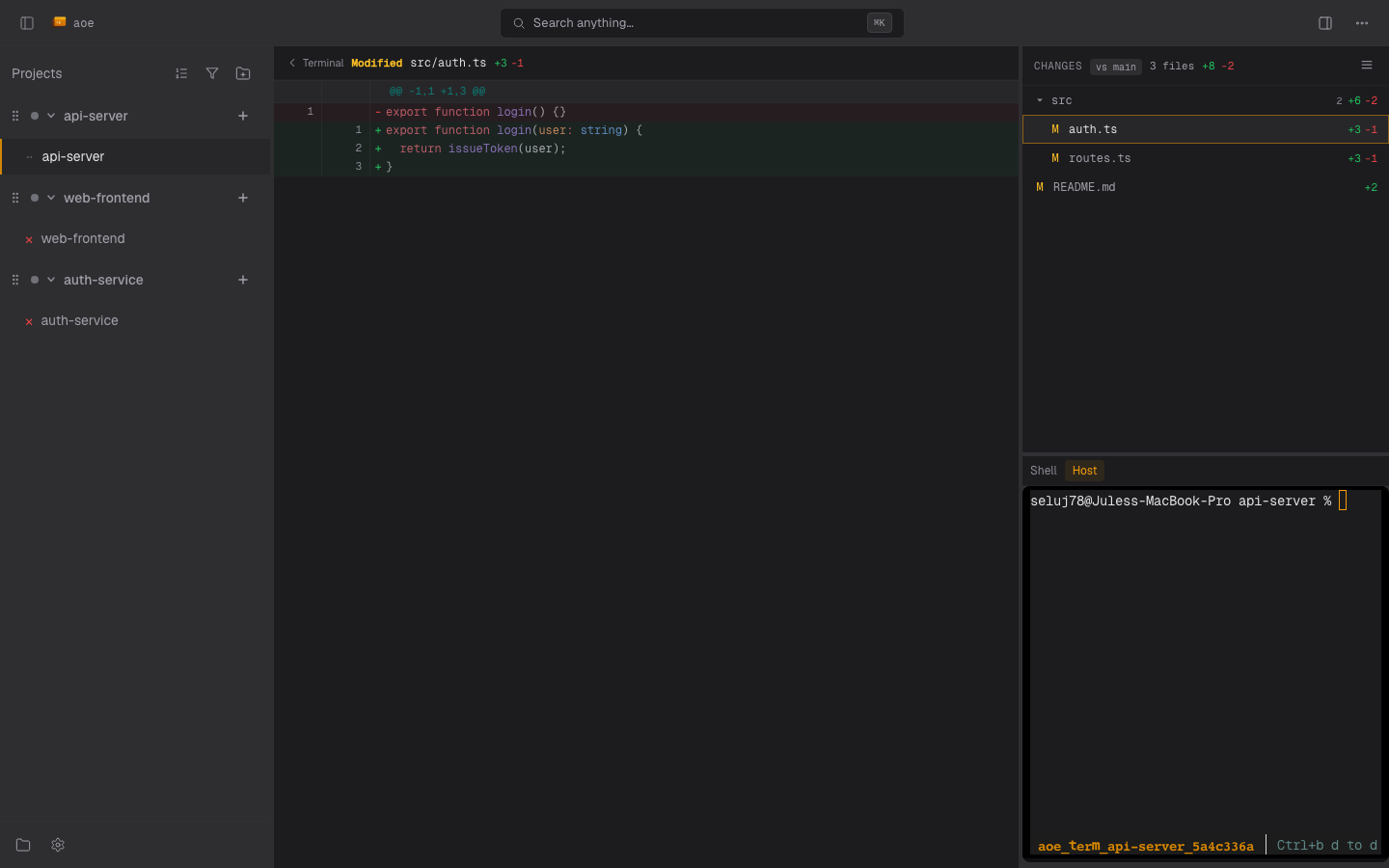
What is compared
The diff runs against the base branch, resolved per repo: that repo’s base override, then the branch its worktree was forked from, then diff.default_branch, then auto-detection. Auto-detection considers every configured remote, so a fork plus upstream layout compares against the branch point rather than a stale fork main. When the base resolves to a local branch strictly behind its origin/ counterpart, the diff compares against the remote tip, so upstream commits you have not pulled are not shown as session changes.
Each entry carries a status letter: A added, M modified, D deleted, R renamed, C copied, ? untracked, U unmerged. Binary files and files too large to render inline show a header and stats with no hunk body.
In the TUI
| Key | Action |
|---|---|
j / k or arrows |
Move between files |
PgUp / PgDn, wheel |
Scroll the diff |
g / G |
Jump to top / bottom |
s |
Toggle split and unified layout |
b |
Change the base branch |
e or Enter |
Open the file in $EDITOR (vim or nano otherwise) |
y |
Copy the file’s repo-relative path |
r |
Refresh |
? / Esc |
Help / close |
The diff refreshes automatically after you save and exit the editor.
In the web dashboard
The changed-files list has two layouts, toggled in its header: flat lists every path, tree nests them under collapsible directories with per-directory file counts and +/- stats. Arrow keys move the selection, left and right expand or collapse a directory, and Enter or Space opens a file. Per-repo collapse state persists to your web settings. Right-click a file or folder for Copy relative path. On a file, Open file opens its current working-tree copy in a new browser tab. It is disabled for deleted files.
The Files pane (folder icon in the activity bar) browses the session’s whole working directory, not just its git changes, so it lists files even in a non-git scratch session. Right-click a file there for the same Open file and Copy relative path actions. Markdown renders as HTML with a Rendered / Raw toggle, in this pane and from the diff list. Files an agent cites that live outside the session’s repo open only when that agent actually read or wrote them during this session: the dashboard cannot open an arbitrary host path.
Split view
Split layout shows old on the left and new on the right, with an aligned placeholder opposite a pure addition or deletion. The TUI stores the choice in [diff].split_view; the web dashboard stores it per browser (Settings > Diff). Both fall back to unified on a narrow pane.
Comments (structured view sessions)
The dashboard can annotate diff lines and send the comments to the agent as one prompt:
- Click the
+in a line’s gutter to start a comment, and+on another line in the same hunk to extend the range. Clicking across a different hunk or the other side of the diff restarts the selection. - Write the comment (markdown supported);
Cmd/Ctrl+Entersaves,Esccancels. Saved comments render inline as editable cards. - A banner above the file list appears once you have one: Send (
Cmd/Ctrl+Shift+S) opens a dialog with an editable intro, a preview of each comment with its captured snippet, and an outro. Comments clear on success unless you uncheck “Clear comments after sending”.
Comments live in localStorage per session. If the agent edits a file so a range no longer matches, the comment moves to a stale-comments block with a [stale] chip; its captured snippet still goes to the agent. The feature is hidden for terminal sessions, and Send is disabled while the worker is stopped.
Base override
Override the branch a repo diffs against when the eventual PR target differs from the project default (stacked PRs, a hotfix off release/*, a renamed branch). The override is sticky across restarts and changes only the comparison, never the worktree.
- Web: click the
vs <ref>chip in the diff header and pick a branch, or reset to clear it. A multi-repo workspace has one chip per repo group, listing that repo’s branches. - TUI: press
bin the diff view. - CLI:
aoe session set-base <session> <branch>, or--clearto drop it. In a multi-repo workspace pass--repo <name>; without it the command lists the repos and exits.
Configuration
[diff]
default_branch = "main"   # auto-detected when unset
context_lines = 3
split_view = false
To see the same changes while editing, use your editor’s gutter integration: vim-gitgutter or vim-signify, git-gutter for Emacs, GitGutter for Sublime Text. VS Code has it built in.