Terminal View
For tmux-backed sessions the dashboard renders the agent’s pane as a live terminal, plus an optional paired shell. For ACP sessions, see the structured view.
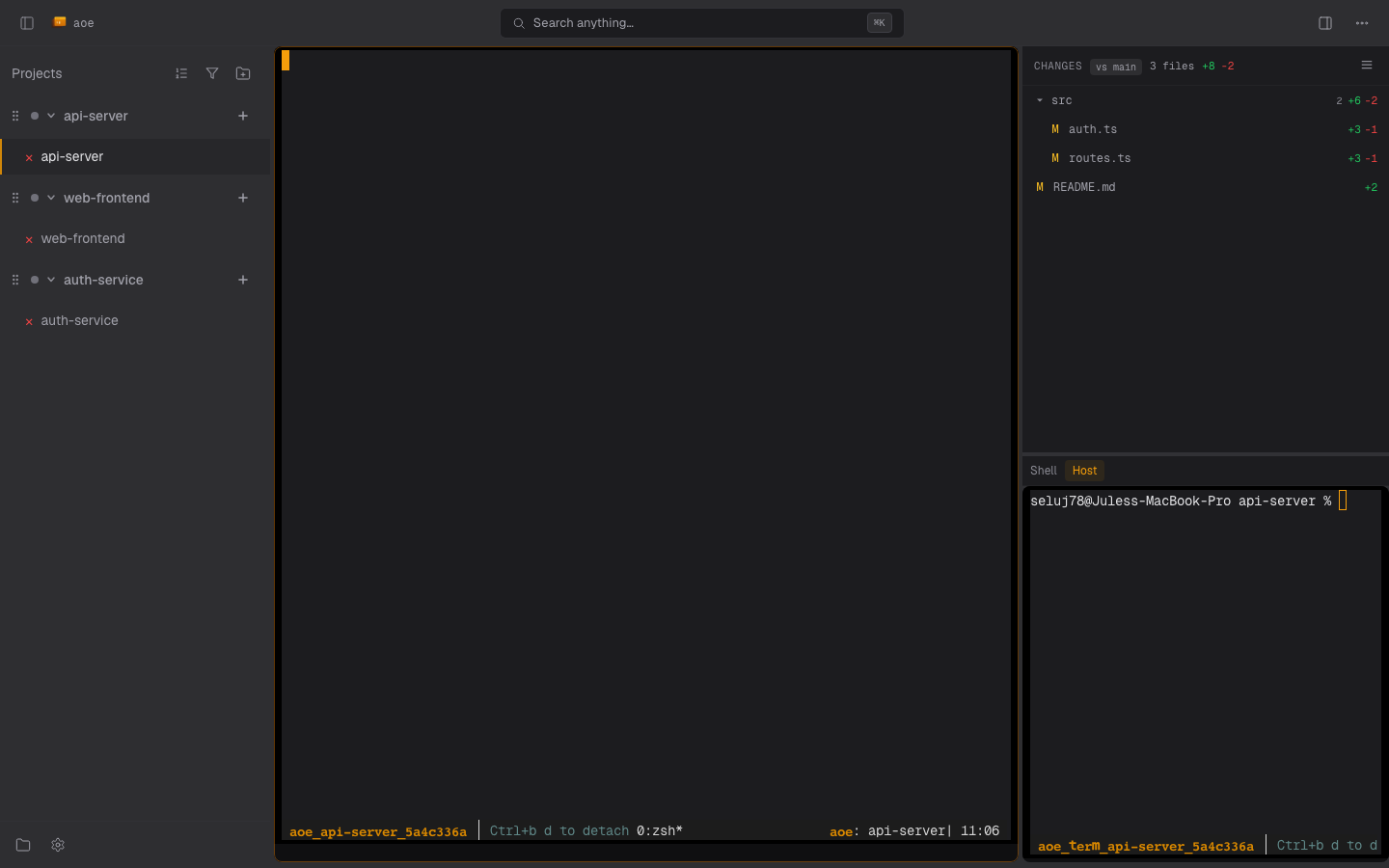
Agent terminal
The server renders the pane and pushes its rows over a WebSocket; the dashboard draws them as real text, so scrolling, selection, and zoom are the browser’s own. There is no xterm.js and no PTY attach.
Where it can, the server renders from the VT live transport and otherwise falls back to capture-pane snapshots on a 50 ms cadence with tmux send-keys for input. The fallback cannot withhold a half-drawn repaint. Add ?livedebug=1 to the URL to see which transport a session uses, plus frame rate and arrival-to-paint latency.
Scrolling up into history widens the window the server sends and surfaces a Back to live button; scrolling back to the bottom returns to the live tail. The agent keeps running while you read.
Copy and scroll
The terminal uses tmux for scrollback and selection, so no modifier keys are involved. Scroll with the wheel or a one-finger swipe. Select by click-dragging; dragging past the top edge scrolls into scrollback and extends the selection, and releasing copies to your system clipboard automatically.
While a selection touches the terminal the pane stops repainting, so the agent cannot rewrite the text under it mid-gesture, and newly captured history loads in above the held rows. A full-screen mouse agent also gives up its grip on touch gestures while a selection is live, so the handles stay draggable. Such an agent copies through OSC 52 instead, which AoE forwards to the same browser clipboard path.
Copy relies on the browser Clipboard API, which needs a secure context: HTTPS or http://localhost. On a plain-HTTP LAN origin the selection stays visible but is not copied. Firefox is best-effort; Chromium and Safari copy reliably.
Paired terminal
Each session can open a paired terminal: a host shell (or, for a sandboxed session, one inside the container) rooted at the session’s working directory. On desktop it shares the split with the agent terminal; on mobile it is one of the right-panel views. It stays alive in the background when you switch away. Its terminal 1 is the same shell the TUI opens with T, in the matching Host or Container mode.
The Container tab launches the container user’s preferred shell, resolved inside the container from the passwd entry, then $SHELL, then bash or sh. Candidates must be regular executables that either have a recognized shell name or appear in /etc/shells; known-compatible shells run in login mode.
Reconnect
If the WebSocket drops (network blip, tunnel re-auth, daemon restart), the terminal retries on a fast ladder (200 ms through 10 s), so transient warm-up failures recover in well under five seconds. A banner shows the state, and a permanently dead pane offers a manual retry instead of looping. The banner names the close code the server returned:
| Code | Reason | Meaning |
|---|---|---|
| 1001 | server shutdown |
Daemon is shutting down; retries normally. |
| 1013 | tmux_not_ready |
Pane was not capturable within 2s, usually a benign warm-up; retries normally. |
| 4001 | pty_dead |
The pane permanently exited; shows a retry banner. |
Under aoe serve --read-only the terminal renders the stream but drops keystrokes, and the session-row delete and triage actions are hidden.
On mobile
The phone renders the same live view, tuned for touch:
- Scrolling is the browser’s own, over the pane’s real scrollback. For a full-screen agent, whose scrollback lives inside the app, a drag is forwarded as wheel input, one line at a time and paced to the app’s redraws.
- Selection is native: long-press to select and copy.
- Typing goes back over the same WebSocket. Tapping the terminal opens the soft keyboard, except in a full-screen app with mouse support, where a tap is a click; the floating keyboard button toggles it either way. The key row adds Esc, Tab, a
Ctrltoggle, paste, and compose by default, and ends with Enter while the soft keyboard is closed if the row has room; pick and order its keys under Settings > Terminal. Toolbar key sequences consume the one-shot Ctrl modifier, including Enter, Ctrl+C, and held repeats. Drag the joystick above the keyboard button for arrow keys. Compose opens a text box for dictation, autocorrect, and long-press paste, and sends the text as one paste. Opening the keyboard never resizes the agent’s pane. - Pinch adjusts the font size, resizing the pane once the gesture ends.
A “Back to live” pill appears while you are scrolled up, and the pane stays mounted across view switches so the connection and scroll position survive.