Tailscale Setup
Set up Tailscale from scratch so you can reach your AOE TUI and web dashboard from any device on your tailnet: phone, tablet, or another computer.
Once set up, aoe serve --remote --passphrase <your-passphrase> gives you a stable https://<machine>.<tailnet>.ts.net URL via Funnel. No domain, no Cloudflare account, no rotating URLs. The PWA survives restarts, and traffic is end-to-end encrypted.
For the end-to-end phone setup after Tailscale is working, see Remote Access from Your Phone. For the full aoe serve reference, see Web Dashboard.
Why Tailscale for AOE
- Stable URL. Your dashboard lives at
https://<machine>.<tailnet>.ts.net, the same URL across restarts, so an installed PWA keeps working. (Cloudflare quick tunnels rotate the URL on every restart, breaking installed PWAs.) - End-to-end encrypted. Tailscale encrypts traffic between your phone and your host with WireGuard. Funnel adds a TLS certificate served from the node itself, so the browser sees a valid HTTPS connection, no self-signed certificate warnings.
- No domain required. Your tailnet name is your domain. No registrar, no DNS records, no Cloudflare account.
- Free. Tailscale’s free Personal plan covers up to 6 users. Funnel is included at no extra cost.
Install Tailscale
- Download and install from tailscale.com/download. Tailscale 1.52+ is required (aoe uses the single-command Funnel syntax introduced in 1.52). Packages are available for macOS, Windows, Linux, iOS, and Android.
- Log in:
This opens a browser window for authentication. After login, your node joins the tailnet.tailscale up - Verify the node is connected:
Your node should appear with its hostname, tailnet IP (tailscale status100.x.y.z), and statusactive.
The Tailscale daemon runs as a background service: on macOS via launchd, on Linux via systemd, on Windows via the system tray app. You don’t need to keep a terminal open.
Enable Funnel
Funnel exposes your node to the public internet through Tailscale’s Funnel relay servers. It’s a per-tailnet feature that must be enabled once:
- Go to login.tailscale.com/f/funnel.
- Click Enable Funnel.
- Accept the terms.
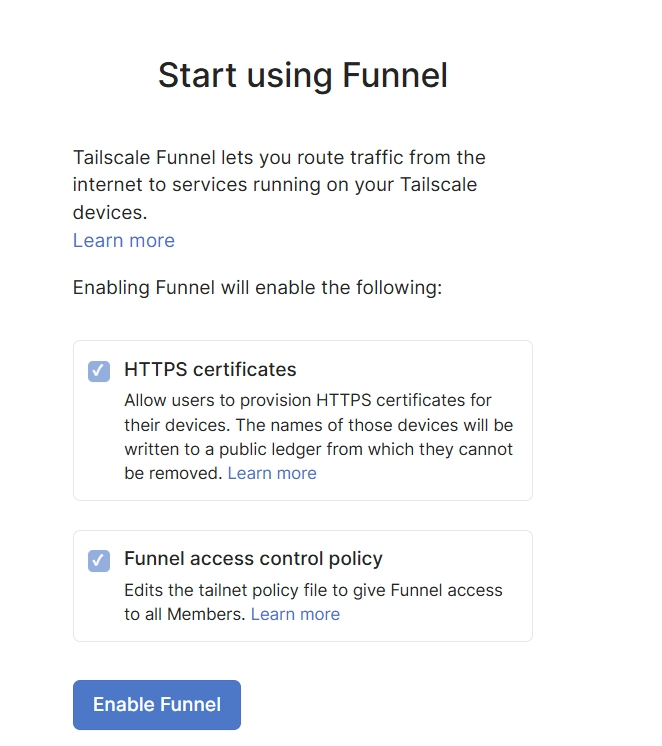
This is a one-time global switch. Without it, tailscale funnel fails with “Funnel is not enabled for this tailnet”; aoe detects this in seconds and shows the fix inline.
Grant Funnel permission in your ACL
Funnel needs explicit permission per node. Open your ACL at login.tailscale.com/admin/acls/file and add a nodeAttrs block:
For personal tailnets (most users):
"nodeAttrs": [
  {
    "target": ["autogroup:member"],
    "attr":   ["funnel"],
  },
],
This grants the funnel attribute to every device owned by a tailnet member. It’s the simplest option and works for the vast majority of setups.
If your node is tagged, autogroup:member does not apply to tagged nodes. Target the tag instead:
"nodeAttrs": [
  {
    "target": ["tag:my-server"],
    "attr":   ["funnel"],
  },
],
Or use "*" to cover every node on the tailnet, tagged or not.
Save the ACL. Changes take effect immediately. aoe re-checks the node on the Confirm screen; press R to refresh.
Run AOE
Once Tailscale is installed and logged in, you can reach AOE in three ways. The first requires Funnel and ACL; the other two only need Tailscale.
Web Dashboard over Funnel (recommended for phones)
aoe serve --remote --passphrase <your-passphrase>--remote requires a passphrase: add --passphrase <value> or set AOE_SERVE_PASSPHRASE. The TUI prompt handles this for you automatically; from the CLI you must supply it.
aoe detects tailscale on PATH and spins up tailscale funnel --bg --yes <port> automatically. First-time HTTPS certificate provisioning can take 30-60 seconds; the startup isn’t stuck. A QR code appears on the TUI; scan it with your phone. The dashboard is available at https://<machine>.<tailnet>.ts.net.
Add --read-only to monitor without terminal input: aoe serve --remote --read-only --passphrase <...>.
The tunnel config persists in Tailscale’s daemon across aoe serve --stop and restarts, so the URL stays live. If you pass --tunnel-name, that takes precedence over Tailscale auto-detection.
Port 443 conflicts. If a non-loopback Funnel service already uses port 443 on this node, aoe refuses to start rather than replace it. A stale loopback config from a prior aoe run is overwritten cleanly. The Error dialog offers [R] to run tailscale funnel reset. Note: tailscale funnel reset clears all Funnel configuration on this node, including any other Funnel services you may have set up. Run tailscale funnel status first to check. Or pass --no-tailscale to fall back to Cloudflare.
For the full phone setup (PWA install, security model, push notifications), see Remote Access from Your Phone.
Web Dashboard over tailnet IP (no Funnel)
If you don’t need public internet access, bind the dashboard to all interfaces and reach it directly over the tailnet:
aoe serve --host 0.0.0.0Then open http://<tailnet-ip>:8080 (e.g. http://100.68.123.45:8080) from any device on your tailnet. The tailnet IP is the 100.x.y.z address shown in tailscale status. The tailnet IP works with no extra flag (the DNS-rebinding gate trusts IP literals, which cannot be rebound); only reaching the box by its MagicDNS name (<machine>.tailnet.ts.net) needs --allowed-host <name>.
This keeps traffic entirely inside the WireGuard mesh: no Funnel, no public exposure, no TLS certificate needed. Tailscale encrypts the connection end-to-end. Use this when you only need access from your own devices on the same tailnet.
TUI over Tailscale SSH
Tailscale includes a built-in SSH server that lets you connect to your host over the tailnet, no port forwarding, no public IP, no sshd config needed. The SSH server runs on Linux and macOS (open-source CLI); Windows, iOS, and Android can connect as clients but cannot host the SSH server.
Enable Tailscale SSH on the host:
tailscale up --sshThis is a one-time flag. You can also enable it from the admin console at login.tailscale.com/admin/machines by checking the SSH box for your node. Tailscale SSH listens on port 22 and cannot be changed.
Connect from any device on the tailnet:
ssh <user>@<machine>.<tailnet>.ts.netOr use the Tailscale IP (100.x.y.z from tailscale status):
ssh <user>@100.x.y.zIf MagicDNS and Tailscale SSH are both enabled, you can also use the shorter tailscale ssh wrapper:
tailscale ssh <user>@<machine>Once connected, you have a few options:
-
Start a new AOE session:
aoeLaunches the TUI in a fresh tmux session. Your work is safe even if the SSH connection drops; tmux keeps it running server-side.
-
Attach to an existing AOE session. If
aoeis already running on the host (e.g. you started it locally and closed the terminal), attach to its tmux session:tmux lsAOE sessions are named
aoe_<title>_<id>(e.g.aoe_my-session_a1b2c3d4). Attach to one:tmux attach -t aoe_<session-title>_<session-id>This reconnects you to the same session list, agent terminals, and in-progress work.
-
List active agents without attaching:
aoe list
No public tunnel, no QR code, no passphrase; the TUI runs over the encrypted WireGuard connection. Tailscale SSH authenticates via your tailnet identity, so you don’t need to manage SSH keys or passwords separately.
Tagged node note. If your host is tagged, Tailscale SSH may be disabled by default. Add a ssh action to your ACL:
"ssh": [
  {
    "action": "accept",
    "src":    ["autogroup:member"],
    "dst":    ["tag:my-server"],
    "users":  ["autogroup:nonroot"],
  },
],
See Tailscale’s SSH documentation for details.
When to use Cloudflare instead
Tailscale is the recommended transport for most users. Consider Cloudflare instead if you can’t install Tailscale, or if you already have a Cloudflare domain and a named tunnel (cloudflared tunnel create). See Web Dashboard for Cloudflare setup instructions.
Troubleshooting
-
“Funnel not enabled for this node” (on the Confirm screen): your ACL is missing the
funnelnodeAttr. This is detected pre-flight at the transport assessment step. If your node is tagged,autogroup:memberrules don’t apply to it; target the tag directly, or use"*". Save the ACL and pressRon the Confirm screen to re-check. -
“Tailscale Funnel is not enabled for this tailnet” (at runtime): the tailnet-wide Funnel toggle is off. This is detected when
tailscale funnelactually runs (not at the pre-flight check). Go to login.tailscale.com/f/funnel, flip the switch, then re-runaoe serve --remote. The[R]key on the Error dialog runstailscale funnel resethere, which won’t fix the toggle; you need to relaunch. -
“port 443 is already configured on this node”: another non-loopback Funnel service is using port 443. Press
[R]on the Error dialog to runtailscale funnel reset, then retry. Or pass--no-tailscaleto use Cloudflare instead. -
tailscale statusshows the node is offline: runtailscale upon the host. If the node is behind a restrictive firewall, check the admin console at login.tailscale.com/admin/machines. Tailscale uses DERP relays to punch through most NATs, so outright offline is rare. -
tailscalenot found on PATH: install from tailscale.com/download and make sure the daemon is running. On Linux,systemctl status tailscaled. On macOS, the menu bar app registers a launchd daemon. On Windows, check the system tray. -
SSH connection refused: Tailscale SSH is not enabled on the host. Run
tailscale up --sshor enable it in the admin console. If the node is tagged, make sure the ACL has asshrule targeting the tag. -
Funnel URL works on the tailnet but not from the internet: Funnel exposes the node to the public internet via DERP relays. Confirm the tailnet-wide Funnel toggle is on at login.tailscale.com/f/funnel and the node has the
funnelattr. -
PWA stopped working after aoe restart: you were on a Cloudflare quick tunnel. Switch to Tailscale (the default when
tailscaleis on PATH), delete the installed PWA, and reinstall from the new stable URL. See Remote Access from Your Phone for PWA install instructions.